

Table of Contents
- What the FTP definition actually covers
- The two channels: control on port 21, data on port 20
- How an FTP session works, step by step
- Active mode, passive mode and the firewall problem
- Security, browsers and what changed
- Setting up a test FTP site on your own machine
- Common mistakes and when to call a pro
- File Transfer Protocol FAQ[+]
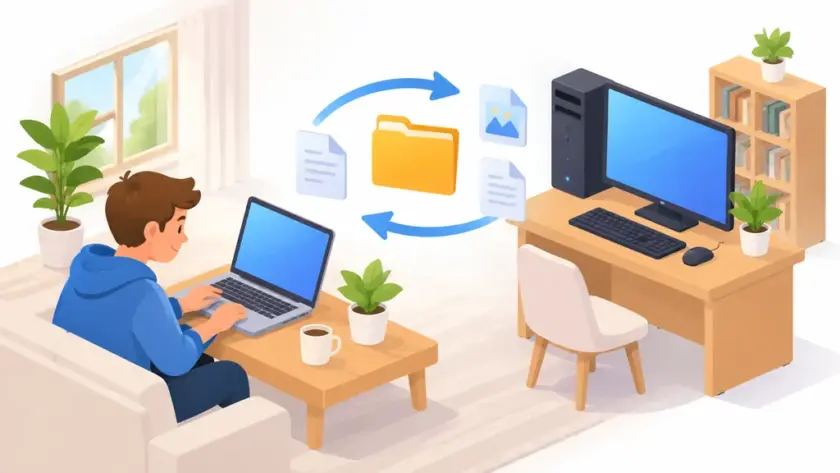
File Transfer Protocol (FTP) is a standard network protocol for moving files between a client and a server over a TCP/IP connection. It keeps two channels open at once: one for commands and replies, and one for the file data itself. The client sends a command, the server answers with a numbered reply, and the transfer proceeds only when both sides agree on the terms.
That two-channel design is the whole story of FTP. Everything else, the ports, the reply codes, the active and passive modes, follows from it. Once you see the session as a conversation on one line and a delivery on another, the protocol stops being mysterious. It becomes a predictable sequence you can watch, log and troubleshoot.
What the FTP definition actually covers
The definition of File Transfer Protocol is narrow on purpose. FTP moves files. It does not render pages, run scripts or manage a database. It copies bytes from one machine to another and reports whether the copy worked.
The protocol dates back to the early days of the network. The original FTP specification, RFC 114 by Abhay Bhushan, was published on 16 April 1971.
The file transfer protocol meaning in practice is a client-server arrangement. Your FTP client opens a control connection to the server. You authenticate. You issue commands like list, retrieve and store. The server replies to each one. When you ask for a file, a second connection opens and the bytes travel across it.
FTP is plain text on the control channel, which is why it is easy to debug and easy to read in a packet capture. The password travels on that channel in clear text, and that weakness shaped everything that came after it.
The two channels: control on port 21, data on port 20
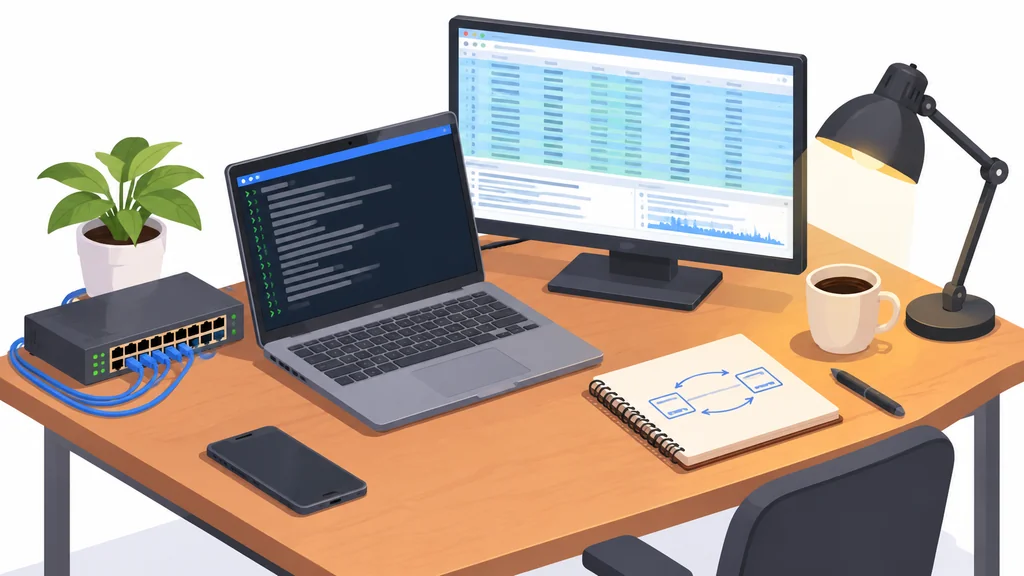
FTP uses the control port for commands and the data port for file transfer. Remember that split and most connection problems become obvious.
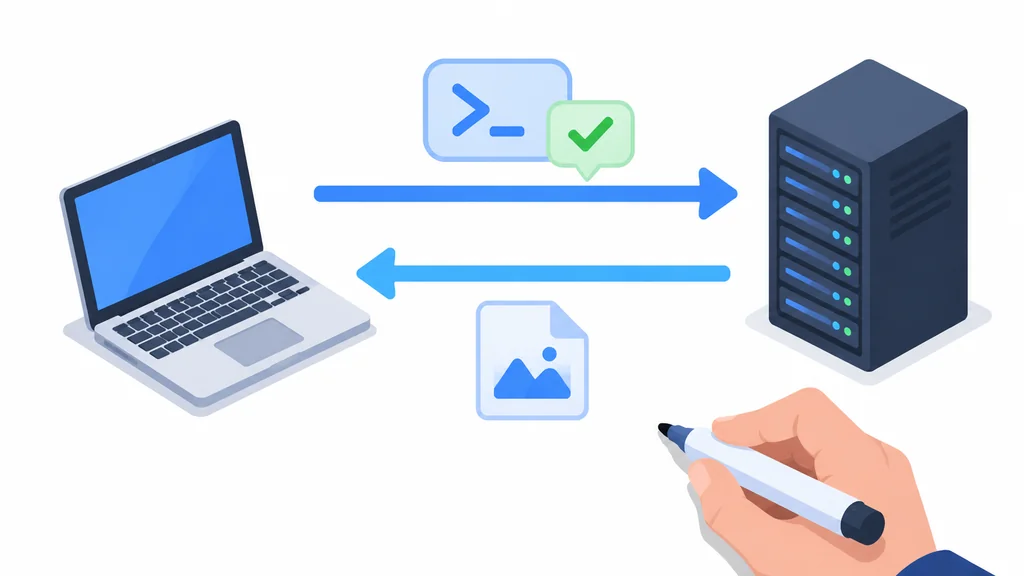
The control channel carries commands and replies. It stays open for the whole session. Every instruction you type travels here, and every answer comes back here. It is a long, thin conversation that lasts as long as you are logged in.
The data channel is created when a file actually moves. In the classic arrangement the server opens it from port 20 back to the client. A directory listing also uses a data channel, because a listing is just another kind of transfer.
This is where firewalls get interested. A client behind a router can open an outbound control connection without trouble. The inbound data connection is the part that often fails, because the firewall has no reason to expect it.
The reply codes on the control channel follow a fixed shape. FTP replies are defined to contain a 3-digit code followed by a space. The first digit tells you the class of answer, so a reply beginning with 2 means success and one beginning with 5 means the command failed.
One small rule keeps clients honest. A server may send at most one 1yz reply per FTP command. That reply class means the requested action is starting, and the limit stops a server from stalling a client with repeated progress notices.
How an FTP session works, step by step
Here is the sequence a normal session follows, from the first packet to the last.
- The client opens a TCP connection to the server on the control port and waits for the greeting reply.
- The client sends a username, then a password, and the server answers each with a reply code.
- The client sets the transfer type and, if needed, the working directory on the server.
- For a download or upload, the client and server agree on how the data connection will be opened, either the server connecting back or the client connecting to the server.
- The transfer runs on the data channel while the control channel waits for the completion reply.
- The server sends a closing reply for the transfer, and the data connection shuts down.
- The client sends a quit command and the control connection closes.
Each numbered step is a place where a session can fail, and each failure leaves a different signature in the log. A wrong password stops at step two. A blocked data connection fails at step four or five, usually after the login has already succeeded.
The mode you choose affects the bytes on the wire. In FTP’s stream mode, the transfer byte size is always 8 bits. Stream mode treats the data as a continuous run of bytes with no internal structure, which suits ordinary files.
Block mode adds structure. In FTP block mode, each data block carries a 3-byte header describing the block. That header lets the receiver reassemble blocks and spot a restart point, which matters on an unreliable link.
Compression is the third mode, and it has its own escape rule. In FTP compressed mode, up to 127 bytes of regular data may follow a compressed-mode escape sequence. These modes are rarely touched by home users, but they explain why FTP clients offer a mode setting at all.
Active mode, passive mode and the firewall problem
The original design had the server connect back to the client for data. That works on an open network and fails almost everywhere else, because the client’s firewall sees an unexpected inbound connection.
Passive mode flips the direction. The server announces a port, and the client makes the outbound data connection instead. Firewalls tolerate outbound connections far more readily.
The standards work followed the same logic. RFC 1579, from February 1994, enables firewall-friendly passive-mode FTP. Later, RFC 2428, from September 1998, adds IPv6 support and a new passive mode to FTP. If you are configuring a client on a modern network, passive mode is the setting to try first.
Address handling is part of the same story. The PORT command carries a 32-bit internet host address and a 16-bit TCP port address. That command is how the client tells the server where to send the data connection in active mode, and it is also why address translation between a private network and the internet causes trouble.
The practical rule is simple. If a session logs in but stalls on every listing or transfer, suspect the data channel, then switch modes. If it stalls only on one network, suspect that network’s firewall.
Security, browsers and what changed
Plain FTP sends the password in clear text across the control channel.
The standards body addressed it in stages. RFC 2228, proposed in June 1997, adds security extensions to FTP.
Browsers used to handle FTP links directly. In 2021, Google Chrome and Firefox dropped FTP support.
When credentials cross the internet, secure variants built on those security extensions are used instead.
For the file-sharing side of the same job, the guide to free data migration software for transferring data in Windows covers the tools that copy files without a server at all.
Setting up a test FTP site on your own machine
The fastest way to understand the protocol is to run a server you can break.
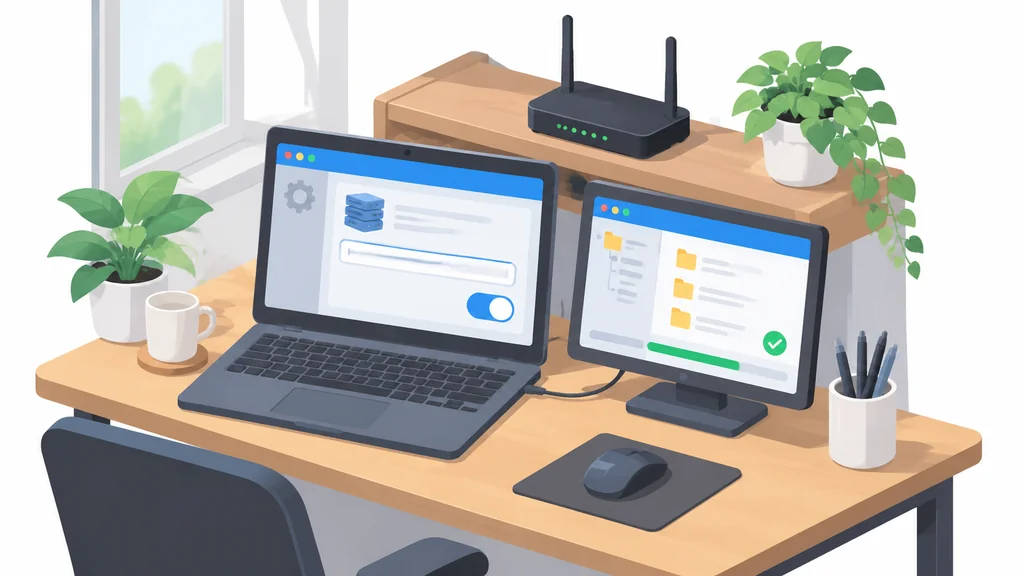
On Windows, the built-in server walk-through binds the FTP site to the local loopback address 127.0.0.1. That keeps the test off your network entirely. The default TCP/IP port for the FTP site in the walk-through is the standard control port, which is what a client expects.
If your machine runs IPv6, the same walk-through notes that the localhost binding “::1” should also be added to the FTP site. Without it, a client resolving localhost to the newer address will fail to connect while the older one works fine.
Point your client at the loopback address, log in with the account you created, and watch the replies. Upload a small file, download it back, and compare the checksums. Then try the same session in passive mode and note the difference in the log.
The control port stays the same, and the data channel behaves the same way, which is why a local test teaches you more than a page of documentation.
Common mistakes and when to call a pro
FTP failures can occur when a firewall blocks the data channel, when the client is in the wrong mode for the network, when the account lacks permission on the target folder, or when the transfer type is set for text instead of binary.
Test locally first. Log the session so you can read the reply codes. Try passive mode before you change anything else. Verify a download by comparing file size and checksum, not by trusting the completion message alone.
There is a limit to what a home user should fix. If the server sits behind a corporate firewall, or the transfer carries client data, the network owner sets the rules. Ask them which mode and which secure variant they support, and let them open the ports.
The same caution applies to email and other protocols you configure by hand. The guide to SMTP settings and where to find yours follows the same principle, get the server’s requirements first and match them exactly.
If you are moving a large archive and want to understand what happens to the data afterwards, the piece on segmenting data with web-based analytics tools shows how transferred files turn into something you can actually analyse.
File Transfer Protocol FAQ
Is FTP still used?
Yes, mostly for automated file drops between systems and for managing website files on hosts that still offer it. Browsers stopped supporting FTP in 2021.
What port does FTP use?
Port 21 carries the control connection and port 20 carries the data transfer in the classic arrangement.
What does a 3-digit reply code mean?
The code tells you the class of answer, with the first digit indicating success, a temporary condition or a failure. The full reply is the 3-digit code followed by a space and a short text explanation.
Does FTP encrypt my password?
No, plain FTP sends the password in clear text on the control channel. The security extensions were proposed in June 1997. Use an appropriate secure FTP variant when credentials cross the internet.
Why does my FTP session connect but never list files?
A session can connect while the data channel fails when a firewall blocks the data connection. Switch the client to passive mode and try again before changing anything else.
Thank you for reading!