


Table of Contents
- What Are SMTP Settings? (Plain-Language Definition)
- The 5 SMTP Settings You Almost Always Need
- SMTP Settings by Provider: Quick Reference Table[+]
- SMTP Port Numbers: Which One Should You Use?
- SSL, TLS, and STARTTLS: What to Choose
- How to Find Your SMTP Settings[+]
- SMTP Passwords and App Passwords Explained
- SMTP Settings for WordPress
- Common SMTP Errors and How to Fix Them[+]
- Free SMTP Servers You Can Use
- Frequently Asked Questions
What Are SMTP Settings? (Plain-Language Definition)
SMTP settings are the five pieces of information an email program needs to hand a message off to the internet.
SMTP stands for Simple Mail Transfer Protocol. Think of it as the postal worker of the internet. It doesn’t write your letter; it just picks it up and drives it to the next depot. When you hit send in Outlook, your phone, or a WordPress contact form, something has to carry that message out of your device and toward the recipient. SMTP is that carrier.
Your SMTP settings are the directions you give that carrier. Get them right and mail flows quietly in the background. Get one wrong and you get an error, a bounced message, or a form that silently swallows submissions. That’s the whole game.
If you’ve ever set up email on a new phone or connected a website to a mailbox, you’ve already touched this. The incoming side uses a different protocol (usually IMAP or POP). The outgoing side is SMTP, and that’s what we’re covering here. If you’re new to how the internet and protocols work, you might want to start with the basics of internet technology.
The 5 SMTP Settings You Almost Always Need
Almost every standard SMTP configuration comes down to five fields. Miss one and it usually won’t work.
1. SMTP server address. This is the outgoing mail server, the address of the machine that will accept your message. It looks like a web address, e.g. smtp.gmail.com. Some providers call it the “SMTP host.”
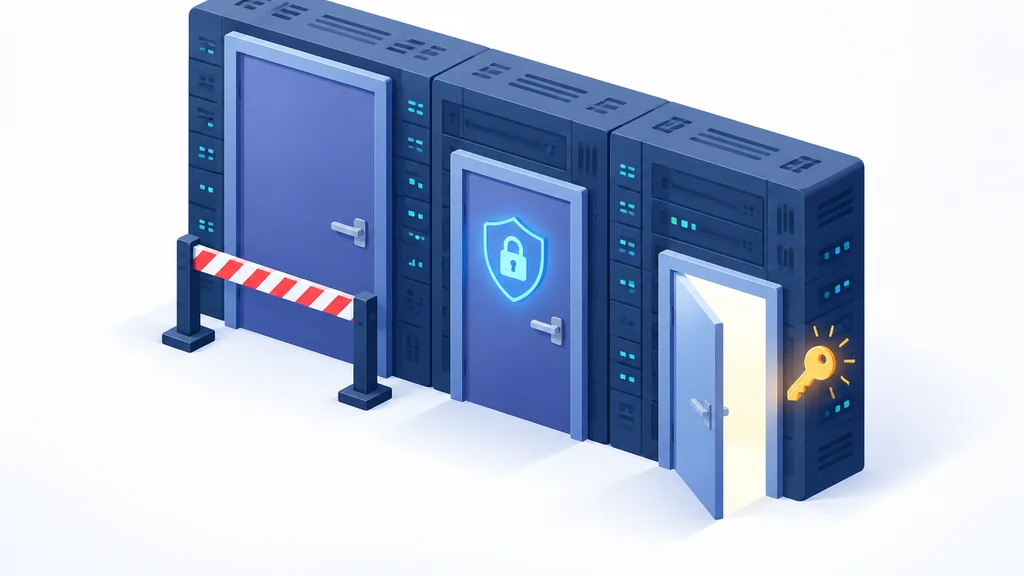
2. SMTP port. A port is a numbered door on that server. Different doors handle different kinds of traffic, and the port you pick has to match the encryption you pick. The handful of ports actually in use are covered in detail further down.
3. Encryption. This scrambles the connection so your password and message aren’t sent in the clear. You’ll see it written as SSL, TLS, or STARTTLS. The exact wording varies by app, which trips people up.
4. Username. Almost always your full email address, not just the part before the @ symbol. A few providers want just the short version, but the full address is the safer default.
5. Password. For most major providers in 2026, this is not your normal login password. It’s an app password, a separate, generated code you create for one specific device or app.
That’s it. Five fields. The confusion almost always comes from the last one and from mismatching port and encryption.

SMTP Settings by Provider: Quick Reference Table
Here’s the part most people actually came for. Find your provider, copy the row, done.
| Provider | SMTP server | Port | Encryption | Username | Password |
|---|---|---|---|---|---|
| Gmail | smtp.gmail.com | 465 or 587 | SSL (465) / TLS-STARTTLS (587) | Full email address | App password (required with 2-Step Verification) |
| Outlook.com (personal) | smtp-mail.outlook.com | 587 | STARTTLS | Full email address | Modern auth (OAuth2); basic password auth being phased out |
| Microsoft 365 (business) | smtp.office365.com | 587 (recommended) or 25 | TLS 1.2/1.3 | Full email address | Modern auth / OAuth recommended; basic auth retiring |
| Yahoo Mail | smtp.mail.yahoo.com | 465 or 587 | SSL required (TLS if available) | Full email address | Generated app password |
| Apple iCloud | smtp.mail.me.com | 587 | SSL required (TLS/STARTTLS fallback) | Full @icloud.com address | App-specific password |
| Zoho Mail (personal) | smtp.zoho.com | 465 or 587 | SSL (465) / TLS (587) | Full email address | App-specific password when 2FA is on |
| Zoho Mail (paid/custom domain) | smtppro.zoho.com | 465 or 587 | SSL (465) / TLS (587) | Full email address | App-specific password when 2FA is on |
Gmail SMTP Settings
Gmail is the one people try first, and the one they most often get wrong on the password. If 2-Step Verification is switched on for your Google account, and for most accounts it is, your regular Google password will not work for SMTP. You need an app password instead. The server is smtp.gmail.com; pick the SSL-only port or the STARTTLS port from the table above, whichever your mail app offers.
Outlook / Hotmail SMTP Settings
Personal Outlook.com accounts use smtp-mail.outlook.com on the STARTTLS submission port. Microsoft has been moving away from basic username-and-password authentication, though, so modern auth (OAuth2) is increasingly required. An old mail app that only knows how to type a password into a box may simply stop working one day.
Microsoft 365 business accounts are stricter still, and the defaults differ from the personal case above:
- Server:
smtp.office365.com, with TLS 1.2 or 1.3. - Recommended port: 587 (port 25 also works as a fallback, but the SSL-only port Gmail uses is not supported for Microsoft 365 client SMTP submission).
- Sending limits: 10,000 recipients per day and 30 messages per minute, so don’t point a bulk mailer at a business mailbox.
Yahoo Mail SMTP Settings
Yahoo uses smtp.mail.yahoo.com on the same two ports as Gmail, SSL required, with TLS as a fallback if available. Like Gmail, Yahoo requires a generated app password for third-party apps instead of your main account password.
Apple iCloud SMTP Settings
iCloud is smtp.mail.me.com on the STARTTLS submission port, with SSL required and a TLS fallback if SSL throws errors. You’ll need an app-specific password, and your username is your full @icloud.com address.
Zoho Mail SMTP Settings
Zoho splits by plan. Personal accounts use smtp.zoho.com; paid organization or custom-domain accounts use smtppro.zoho.com. Either way, the same SSL/TLS port pair applies, authentication required, and an app-specific password if two-factor authentication is on.
SMTP Port Numbers: Which One Should You Use?
Short answer: use the STARTTLS submission port unless your provider tells you otherwise, and use the SSL-only port if your app only supports “SSL” as a single option.
The three main ports exist for different historical reasons, and knowing why makes the error messages make sense.
| Port 25 | Port 465 | Port 587 | |
|---|---|---|---|
| Purpose | Server-to-server relay | Message submission | Message submission |
| Encryption | None by default | Implicit TLS (SSL) | STARTTLS (upgrades after connect) |
| Blocked by home ISPs? | Yes, usually blocked | Rarely | Rarely |
| Standard | Original SMTP (1982) | RFC 8314 (2018) | RFC 6409 |
| Recommended for mail clients? | No | Yes, if app only offers SSL | Yes, safest default |
- Port 25 is the original, designed in 1982 for server-to-server relay: one mail server talking to another, not your laptop submitting a message. Most residential internet providers and cloud hosts block it outbound by default, to stop spam bots running on compromised home machines. A connection error on this port at home is usually your network, not your settings.
- Port 587 is the registered message-submission port, standardized in RFC 6409. It’s what your mail client is supposed to use: a plain connection that upgrades to encrypted via STARTTLS. This is the safest default for almost everyone.
- Port 465 has a strange history. Revoked in 1998 in favor of STARTTLS, then un-revoked by RFC 8314 in 2018, which now recommends implicit TLS (encrypted from the very first byte) where it’s supported. That reversal is why it’s back in active use today.
Port and encryption have to match before authentication is even checked. A mismatched pair fails the connection outright. No username or password gets evaluated at all.
SSL, TLS, and STARTTLS: What to Choose
Don’t overthink encryption. Pick the option that matches your port and move on.
The SSL-only port pairs with “SSL,” and the STARTTLS port pairs with “TLS” or “STARTTLS.” Match the dropdown to the port you already picked (“None / SSL / TLS / STARTTLS”) and you’re done.
The confusing part is that SSL and TLS are often used interchangeably in menus even though they’re technically different generations of the same idea. STARTTLS is different again. It means “start unencrypted, then upgrade.” Some apps label the submission port as “TLS” and some as “STARTTLS.” Both are describing the same behavior. If you want to dive deeper into the differences between these encryption protocols, see how SSL compares to TLS in real-world practice.
- SSL
- Older label still used in mail-client menus. In SMTP today it almost always means implicit TLS, the kind used by the SSL-only submission port, encrypted from the very first byte.
- TLS
- The modern encryption standard sitting behind both the “SSL” and “STARTTLS” labels you’ll see in settings screens.
- STARTTLS
- A command that upgrades a plain connection to encrypted mid-handshake. This is what the recommended submission port uses.
What you should not do is leave encryption off entirely. That sends your password across the network in a form anyone on the same Wi-Fi can potentially read.
How to Find Your SMTP Settings
If your provider isn’t in the table above, you have two places to look.
In Your Email Account Settings
Log into your email provider’s web interface and look in the help or support section for “POP and IMAP” or “outgoing server” documentation. Most providers publish their server address, port, and encryption requirements in a help article outside your account settings. Your account settings will usually show the app password area, where you generate the separate password for third-party apps.
In cPanel or Hosting Panel
If your email address is tied to your own domain (say you@yourbusiness.com), your hosting panel is where the settings live. In cPanel, look for the Email Accounts area, then find the option to configure a mail client for a specific address. That screen typically shows the outgoing server, port, and encryption for your domain in one place. Other hosting panels have an equivalent screen under their email section. The values differ from host to host, so use exactly what your panel shows you.
SMTP Passwords and App Passwords Explained
App passwords exist for a simple reason. If you type your real password into a third-party mail app, that app now holds the keys to your entire account. App passwords limit the damage. Each one works for one thing, and if you delete the app, you delete the password. For Google, Yahoo, iCloud, and Zoho, an app password is required when two-factor authentication or 2-Step Verification is switched on, which is most accounts now.
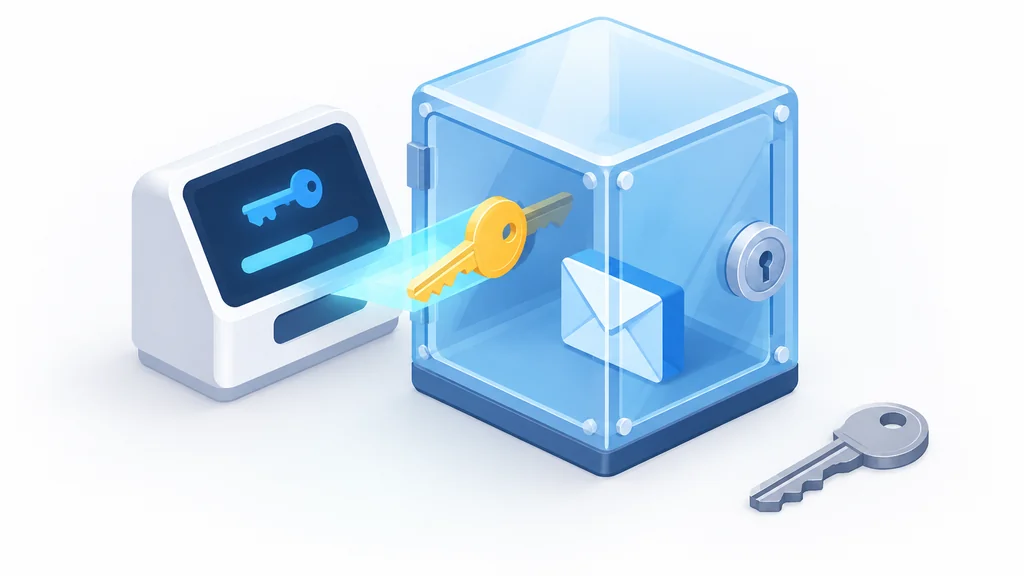
The exact menu path changes as providers redesign their interfaces, so don’t hunt for a specific button. Look in your account’s security settings for a section labeled something like “app passwords” or “app-specific passwords,” and generate one there. Copy it immediately; most providers show it only once.
SMTP Settings for WordPress
WordPress doesn’t send email through SMTP by default, and that’s a problem.
Out of the box, WordPress uses your web server’s built-in mail function. On many hosts, that function is unreliable, gets flagged as spam, or fails silently. Contact form submissions vanish. Password reset emails never arrive. The site looks fine and quietly isn’t sending anything. (For a deeper look at the tradeoffs between managed hosting and handling your own server, see how email delivery is affected by your hosting choice.)
The fix is an SMTP plugin. You install one, then paste in the same five settings covered above, usually copied from your domain’s mailbox or a dedicated sending service. Once configured, WordPress sends through a real mail server instead of hoping your host’s setup cooperates.
If you’re using a plugin that authenticates with your mailbox, remember the app password rule. Pasting your normal login password into a WordPress SMTP plugin is one of the most common reasons people get an authentication error and give up.
Common SMTP Errors and How to Fix Them
SMTP error 535 — authentication failed
Error 535 means the server rejected your username and password combination. It comes from the SMTP AUTH extension defined in RFC 4954, and the message is literal: the credentials didn’t pass.
The most common cause, by a wide margin, is using the wrong type of password, your regular account password in a spot that requires an app-specific one instead. Go generate an app password and try again. If that’s not it, check that your username is the full email address, and that you haven’t left a stray space at the end when pasting. This is the single most common support ticket for a WordPress contact form: it worked fine in testing, then broke the moment the mailbox owner turned on two-factor authentication—because the plugin was sending the old account password, not an app-specific one.
Connection refused on port 25
This usually isn’t a settings problem. It’s your network. Most residential ISPs and cloud hosts block outbound port 25 by default, to cut down on spam. No amount of re-typing your password will fix it.
Switch to the STARTTLS submission port covered above, or the SSL-only port if your app only supports SSL.
SSL handshake failed
This means your app and the server couldn’t agree on how to encrypt the connection. It’s almost always a port-and-encryption mismatch.
Set encryption to match your port. Use SSL on the SSL-only port, and TLS or STARTTLS on the STARTTLS port. Also check whether your mail app is old enough to lack support for the TLS version the server requires. Microsoft’s business tier has its own requirement here. It needs TLS 1.2 or 1.3, and an outdated client will fail the handshake no matter how correct your other fields are.
Free SMTP Servers You Can Use
If you’re sending from a website rather than a personal mailbox, a dedicated sending service is often the better route. Three names come up constantly.
SendGrid no longer has a standing free monthly tier. As of 2026, new signups get a time-limited free trial instead. That trial runs roughly 100 emails per day for about 60 days, after which a paid plan is required. Check SendGrid’s current pricing page before you commit, because these terms move.
Brevo offers a standing free plan of up to 300 emails per day, no credit card required. The plan doesn’t expire or roll into a paid trial, which makes it a reasonable starting point for a small site.
Amazon SES is the cheapest at volume, but the on-ramp changed. The old SES-specific free tier is no longer available to new customers as of 2025. It used to offer 3,000 free emails per month for 12 months. New AWS accounts instead get a general $200 AWS Free Tier credit that can be applied toward SES. After that, SES bills around $0.10 per 1,000 emails sent.
Free tiers and pricing change often. Confirm current limits on the provider’s own pricing page before you build anything around them.
Conclusion
SMTP settings are five fields, and once you know which one you got wrong, the fix is usually quick. Match your port to your encryption, use a full email address as your username, and generate an app password instead of pasting your main login. If you’re stuck, the error message is telling you which of those three to check.
Frequently Asked Questions
Why won’t my regular email password work for SMTP? For Gmail, Yahoo, iCloud, and Zoho, an app-specific password is required when two-factor authentication or 2-Step Verification is switched on. Your regular password is rejected. Generate an app password in your account’s security settings and use that instead.
Which SMTP port should I use? Port 587 is the standard message submission port and the safest default for most setups. Port 465 works well when your app only offers “SSL” as an option. The legacy relay port is intended for server-to-server traffic and is often blocked by residential ISPs and cloud hosts.
Why is port 25 blocked on my home connection? Because it’s the port spammers abuse most, and blocking it by default cuts down on spam bots running on compromised home machines. Switch to one of the encrypted submission ports instead; your settings aren’t the problem.
What does SMTP error 535 mean? It means authentication failed. The most common cause is using a regular account password where an app-specific password is required. Also check that your username is your full email address.
My app defaults to port 465. Will that work with Microsoft 365? No. That port is not supported for Microsoft’s business-tier client SMTP submission. Use the recommended submission port instead; the legacy relay port is a fallback only, and many home and office networks block it outbound.
Do I need an SMTP plugin for WordPress? WordPress doesn’t send mail through SMTP by default, and many hosts’ built-in mail functions are unreliable. An SMTP plugin lets you enter your server address, port, encryption, username, and password so WordPress sends through a real mail server.
Thank you for reading!