

Table of Contents
- What Is the FTP Client Port? (Quick Connection Guide)[+]
- The Dual-Port Architecture: Why FTP Uses Port 20 and Port 21[+]
- Active vs. Passive FTP: How Port Dynamics Work in Practice[+]
- Firewall and Router Configuration: Which Ports to Open (Client vs. Server)[+]
- FTP vs. FTPS vs. SFTP: Port Numbers You Should Never Confuse[+]
- How to Configure Port Settings in Popular FTP Clients[+]
- Troubleshooting Common FTP Port and Connection Errors[+]
- Security Best Practices for FTP Port Management[+]
- Summary Checklist: FTP Port Rules at a Glance
- Frequently Asked Questions About FTP Ports
When you type a port into an FTP client, the control port is port 21, the one number you type in by hand. That’s the destination your client connects to, and it’s the port number you’ll almost always enter manually — except when using a custom control port or setting a local port range for active mode. Your own machine uses a separate, random source port that the operating system assigns automatically, and you normally don’t need to configure it. That split, one port you choose and one you don’t, is the root of most FTP firewall confusion. This article covers why FTP uses two separate ports for commands and data, how active and passive mode decide which side opens the data connection, what to open on your firewall versus your host’s, how FTP, FTPS, and SFTP ports differ, and how to fix the connection errors that follow.
What Is the FTP Client Port? (Quick Connection Guide)
The FTP client port is 21. That’s the destination port, the one you type into FileZilla, WinSCP, or Cyberduck, and it’s the same number whether you’re on Windows, macOS, or Linux. Your client does not bind to that port. The server does.
Destination Port vs. Client Source Port
Your client sends packets to the server’s control port, and the server replies to whatever port your operating system handed your client. That source port is dynamic and unprivileged, drawn from a registered ephemeral range that varies slightly by platform (see the table below). RFC 6056 recommends a wider window for unpredictability than older implementations used, and Linux distributions tend to default lower than Windows does. The practical takeaway is simple. Don’t try to pin your client to a fixed source port unless a firewall forces you to.
| Source | Ephemeral Port Range |
|---|---|
| IANA Dynamic/Private (registered) | 49152-65535 |
| Windows (Vista and later) | 49152-65535 |
| RFC 6056 recommendation | 1024-65535 |
| Typical Linux default | 32768-60999 |
None of these exact boundaries matter day to day. What matters is that this port is normally the one you don’t configure by hand.
Quick-Start Client Connection Parameters
| Protocol | Software “Port” field | Default Value | Notes |
|---|---|---|---|
| FTP | Port | 21 | Cleartext control connection; data port negotiated separately |
| Explicit FTPS (FTPES) | Port | 21 | Same control port; AUTH TLS upgrades the session before credentials |
| Implicit FTPS | Port | 990 | Legacy mode; data on 989; predates RFC 4217 |
| SFTP | Port | 22 | SSH subsystem; single channel, no separate data port |
If you’re unsure which row applies to you, start with row one and check whether your host requires encryption.
The Dual-Port Architecture: Why FTP Uses Port 20 and Port 21
FTP uses two ports because it separates commands from data. RFC 959, published in October 1985, defines this out-of-band model. One TCP connection carries your commands and the server’s replies, and a second, independent connection carries the actual file bytes and directory listings. Because the specification keeps those two connections independent, aborting a transfer on the data connection doesn’t require tearing down the control connection or your login session.
The Command (Control) Channel: Port 21
The control port carries the conversation. Your client sends USER, PASS, CWD, QUIT, and the mode-selection commands PORT and PASV down this channel, and the server answers with three-digit reply codes. You’ll recognize 220 for service ready. The server replies 331 once the username is accepted and a password is requested. It sends 230 after you’re logged in. Under that model this connection is meant to persist for the entire session independently of the data channel, so when a login succeeds but a listing hangs, look at the data channel — the control connection already did its job.
The Data Channel: Port 20
Port 20 carries payloads. File transfers (RETR to download, STOR to upload) and directory listings (LIST, MLSD) travel over this second connection. Here’s the part that trips people up. This port is only used by the server in Active Mode. In Passive Mode it’s bypassed entirely, and the data connection lands on a dynamically chosen port instead. So if you’re running passive, which most clients do by default, that port never enters your firewall rules at all.
Active vs. Passive FTP: How Port Dynamics Work in Practice
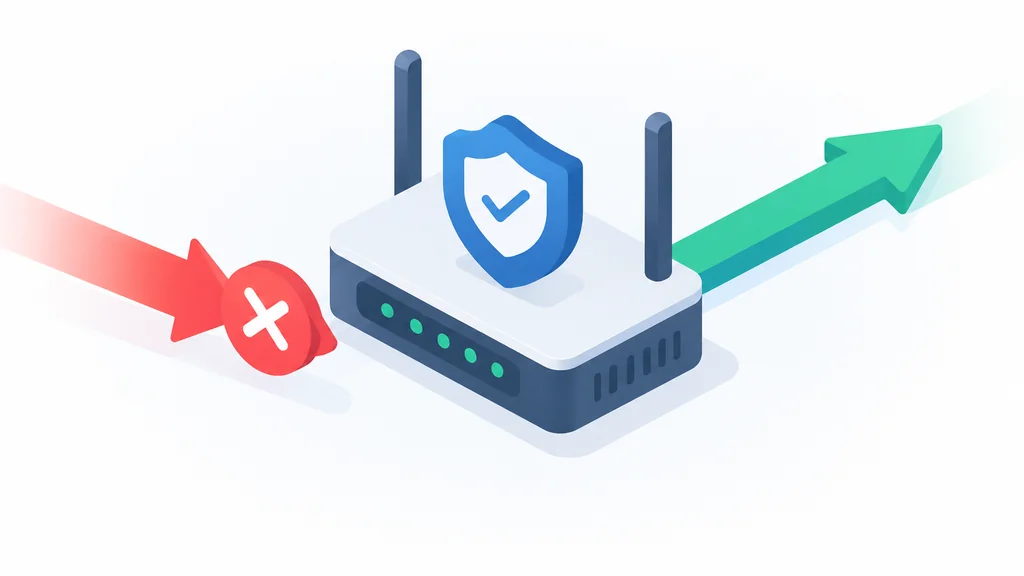
The mode you pick decides who opens the data connection, and that single fact determines every firewall rule that follows. Active mode has the server dial back to you. Passive mode has you dial out to the server. Only one of those survives a home router without configuration.
Active FTP
In active mode, your client opens a connection from a dynamic local port to the server’s control port and logs in. It then sends a PORT command containing an IP address and a dynamic port it’s listening on. The server responds by opening a brand-new connection from its own port 20 to that client port. The problem is that inbound step. Your NAT router and client firewall see an unsolicited incoming connection and drop it, because nothing on your side asked for it. The login succeeds, the banner prints, and then the directory listing just hangs. That’s almost always active mode hitting a NAT wall, not a bad password.
Passive FTP (PASV)
Passive mode flips the direction. Your client connects to the server’s control port and sends PASV. The server opens an unprivileged ephemeral port and replies with 227 Entering Passive Mode (h1,h2,h3,h4,p1,p2), where the first four numbers are the server’s IP and the port is calculated as p1 times 256 plus p2. Your client then opens a new outbound connection to that address. Both connections are client-initiated outbound, which is exactly why passive mode traverses NAT without any router configuration. It’s the modern default for that reason.
Firewall and Router Configuration: Which Ports to Open (Client vs. Server)
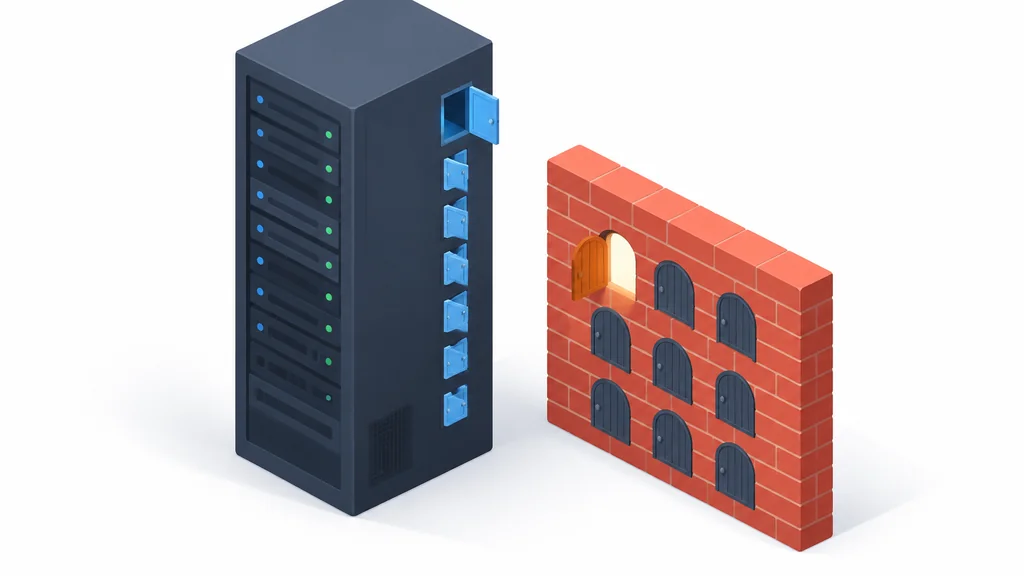
Which firewall needs the change depends entirely on which side of the connection you’re on. As a client, you almost never open anything. As a server operator, you open the control port plus a defined passive range. Getting that distinction right solves most of this topic.
Client-Side Firewall Rules (Home/Office User)
If you’re using passive mode, which mainstream FTP clients such as FileZilla, WinSCP, and Cyberduck default to, you need no inbound port forwarding at all. Most consumer and router firewalls allow outbound connections by default, so the control port and the high ephemeral ports passive mode opens typically pass through without extra configuration; firewall policies still vary by device and ISP, so check your own outbound rules if a passive connection ever stalls. If you’re stuck in active mode for some reason, you’d need to forward a local port range on your router, or rely on the router’s FTP ALG (Application Layer Gateway), which rewrites PORT and PASV traffic to help active mode survive NAT. That ALG is widely documented, including in FileZilla’s own network-configuration docs, as inconsistent and often buggy across router firmware. If you’re using web hosting with cPanel, most providers give you FTP access that works immediately without router tweaks. Don’t count on ALG working reliably.
Server-Side Firewall Rules (Sysadmin / VPS Host)
On the server, open inbound TCP to the control port. That’s mandatory. For active mode, allow outbound TCP from the data port to your clients. When you’re running a dedicated server or managing your own infrastructure, these rules become critical. For passive mode, define a restricted passive range in the FTP daemon and open that exact range inbound. In vsftpd, the directives are pasv_min_port and pasv_max_port, both defaulting to 0 (any port) if unset. Setting a narrow explicit range, commonly 100-500 ports wide, is the documented way to make passive mode firewall-friendly. For example, set pasv_min_port=50000 and pasv_max_port=51000 in the daemon configuration. Then open that same 50000-51000 range inbound in UFW, iptables, or your cloud security group (AWS, Hetzner, DigitalOcean). If you’re planning to use VPS hosting, make sure your provider’s control panel lets you configure these rules precisely. Other daemons like ProFTPD and Pure-FTPd have an equivalent passive-port-range setting.
Complete Port Matrix Table
| Side | Mode | Direction | Port/Range | Protocol | Purpose |
|---|---|---|---|---|---|
| Client | Both | Outbound | 21 | TCP | Control connection to server |
| Client | Both | Outbound | Dynamic (ephemeral) | TCP | Client source port, OS-assigned |
| Client | Active | Inbound | Dynamic (ephemeral) | TCP | Server connects back to client |
| Client | Passive | Outbound | Server’s passive range | TCP | Client connects to server data port |
| Server | Both | Inbound | 21 | TCP | Control connection listener |
| Server | Active | Outbound | 20 | TCP | Server initiates data connection |
| Server | Passive | Inbound | Configured passive range | TCP | Data connection listener |
FTP vs. FTPS vs. SFTP: Port Numbers You Should Never Confuse
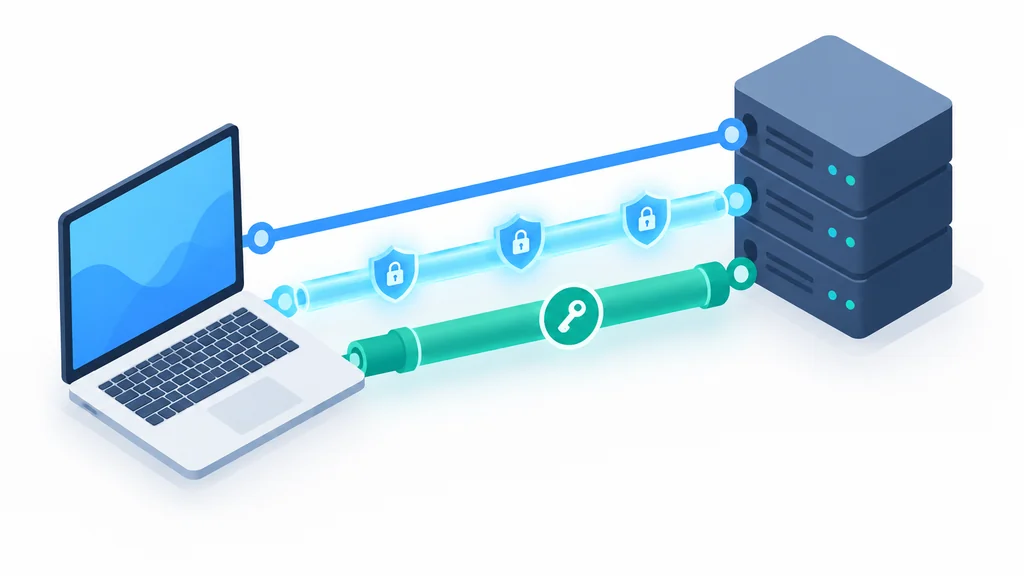
These three protocols share a name fragment and almost nothing else. Plain FTP is cleartext on the control port. FTPS is FTP wrapped in TLS, usually still on that same port. SFTP is a completely different protocol that happens to ride on port 22. Mixing them up is the fastest way to waste an afternoon.
Plain FTP (Ports 21 & 20)
Plain FTP is the legacy protocol RFC 959 defines. It has no encryption layer at all, which means your username, password, and every file you transfer cross the wire in cleartext. It still works, and it’s still widely deployed, but nothing about it is private.
FTPS (Explicit vs. Implicit)
Explicit FTPS, sometimes called FTPES, connects on the standard control port and issues AUTH TLS to upgrade the session to TLS before credentials go out. This is the mode RFC 4217 (October 2005) actually defines and recommends, and it uses passive data ports for the encrypted transfers. The process of adding an SSL certificate ensures that the connection is encrypted from start to finish. Implicit FTPS assumes TLS from the first byte and uses a dedicated port 990 for control and 989 for data. It predates RFC 4217, is not itself defined by that RFC, and is the deprecated option. If a host offers both, choose explicit.
SFTP (Port 22 — SSH File Transfer Protocol)
SFTP is not “FTP with encryption.” It’s an SSH subsystem that runs over a single port, 22, with no second data port and no active/passive negotiation whatsoever. It also was never published as a formal RFC. SFTP exists only as IETF Internet-Drafts (draft-ietf-secsh-filexfer, through at least 13 revisions, last dated July 2006). RFC 4251 is the SSH architecture RFC it rides on, not the SFTP specification itself. If you want to set up encryption on a website serving as a file repository, SFTP provides a single encrypted SSH channel for both commands and data, with native key-based authentication support.
Calling SFTP “RFC 4251” or any ratified RFC is the single most common misconception about it, and it’s wrong — SFTP has never been published as a formal RFC.
How to Configure Port Settings in Popular FTP Clients
Most clients hide the port field until you look for it, and all of them default to the control port for plain FTP. Here’s where each one keeps it.
FileZilla Configuration
In FileZilla, the Quickconnect bar typically has a Port field right next to the host and username. Leave it blank to use the default control port for standard FTP. For saved connections, a similar field typically appears in Site Manager. To switch transfer mode, look for settings under Connection > FTP or Transfer Mode options (the exact path may vary by version) and choose Passive or Active. If active mode is unavoidable, you may also be able to limit the local port range FileZilla uses in those same settings.
WinSCP Setup
WinSCP typically puts the protocol and port on the main Login screen. Pick your protocol from the dropdown, and the port auto-fills to match, defaulting to the control port for FTP and SSH’s port for SFTP. The passive mode toggle typically lives in Advanced Site Settings under Connection or Transfer options, though menu locations may vary.
Cyberduck and Command-Line Clients
Cyberduck typically uses a protocol dropdown and auto-assigns the port based on your selection, though you can override it. On the command line, the traditional ftp client toggles passive mode with the passive command; check your specific command-line client’s documentation, since defaults and toggle syntax vary.
Troubleshooting Common FTP Port and Connection Errors
Almost every FTP port error falls into one of three buckets, and each has a distinct fix. Match your symptom to the heading below.
“Connection Timed Out” on the Control Port
If you can’t connect at all, the control channel never opened. Common causes: the FTP daemon isn’t running, a firewall is blocking the control port inbound, or your ISP blocks it outbound. Diagnose it with telnet yourserver.com or nc -zv yourserver.com, adding the control port number in each case. If you get a banner, that port is fine and your problem is elsewhere.
“227 Entering Passive Mode … Failed to Retrieve Directory Listing”
This one is specific and common. The control connection succeeded, you logged in, and then the listing failed. The server sent a 227 reply with an IP address and port, but your client couldn’t connect to it. The cause is usually one of three things: the server’s passive range (say 50000-51000) is blocked by a firewall or cloud security group, the client has an outbound firewall rule blocking that port, or the server advertised an unreachable address (common when a server behind NAT isn’t configured to advertise its correct public IP for passive connections). Align the daemon’s configured passive range with the firewall rule, check client-side outbound rules, or configure the server to advertise its correct public IP to clients, depending on which cause matches your symptom.
“425 Can’t Open Data Connection”
A 425 means the server tried to open or establish the data connection and failed. In active mode, that typically means the server attempted to connect inbound to your client’s listening port, and your router or firewall dropped the connection. In passive mode, it can mean your client couldn’t connect outbound to the server’s advertised data port due to a client-side firewall rule or a routing problem. The most common fix for active mode is to switch to passive mode (PASV); for passive mode, verify your client-side outbound firewall rules and that the advertised port is reachable. It’s generally easier to troubleshoot by staying in passive mode.
Security Best Practices for FTP Port Management
Leaving the control port open to the internet means accepting frequent automated scanning and brute-force attempts against your login. That’s the baseline reality of running FTP, and it’s why the mitigations below matter more than the port number itself.
Why Leaving the Control Port Open Is a Security Risk
An open control port attracts bots. They try common usernames and passwords regularly, and because plain FTP sends credentials in cleartext, anyone positioned on the network path can read them. A strong password helps against brute force, but it does nothing about sniffing. Opening that port on a server with a strong password is still cleartext on the wire.
Mitigation Strategies
Run fail2ban or an equivalent brute-force protection to ban abusive IPs hitting that port. Enforce TLS and disallow plain FTP logins entirely. Implementing TLS protects your credentials and file transfers from sniffing attacks. PCI-DSS Requirement 4 requires encryption of sensitive data in transit over public networks; it doesn’t name or ban FTP specifically, it bans the absence of encryption, which plain FTP structurally cannot provide. FTPS or SFTP satisfies the encryption-in-transit requirement, though full PCI-DSS compliance also depends on other controls such as access management, logging, patching, and monitoring that fall outside the scope of the FTP port itself. You can also change the default control port to an obscure high port to reduce bot scans, or migrate fully to SFTP with key-based authentication and skip the FTP port question altogether.
Summary Checklist: FTP Port Rules at a Glance
Work down this list and stop at the row that matches your situation.
- You’re a client behind a router: use Passive mode. Open nothing. No port forwarding needed.
- You’re configuring an FTP server: open inbound TCP 21, then define an explicit passive range (for example 50000-51000) in the daemon and open that exact range in your firewall or cloud security group.
- You need active mode for a specific reason: allow outbound TCP from server port 20, and expect router ALG behavior to be unreliable.
- You want the simplest secure setup: choose SFTP on port 22. One port, encrypted, no active/passive negotiation.
- You’re subject to PCI-DSS: plain FTP won’t pass. Use explicit FTPS on 21 or SFTP on 22.
Frequently Asked Questions About FTP Ports
What port does an FTP client use to connect to a server?
The destination port is the default FTP control port covered earlier in this guide. Your client’s own source port is dynamic and unprivileged, assigned by your operating system, and you don’t typically need to type it in. Only the destination port appears in your client’s port field.
Why does FTP use two different ports?
The original specification separates command signaling from bulk data transfer into two independent TCP connections. The control port carries commands and reply codes for the whole session, while the data connection carries file contents and directory listings. Because the two stay independent, canceling a transfer on the data connection doesn’t drop the control connection or your login session.
Can I change the default FTP control port to something else?
Yes. Change the daemon’s listen port and specify the custom port in your client’s port field. It reduces automated scanning noise, though it’s not a substitute for encryption. You’ll need to update your firewall rules to match.
Do I need to open FTP’s data port on my home router?
No. Passive mode doesn’t use it, and passive is the default. In active mode, that port is purely the server’s source port. In standard mode, your client doesn’t listen on it. Your home router has no reason to forward it.
What is the difference between the FTP control port and the SFTP port?
The FTP control port carries cleartext commands, also used by explicit FTPS after an AUTH TLS upgrade. SFTP’s port runs SSH instead, with the file transfer itself working as a subsystem over that single connection. They’re entirely distinct protocols, and one of them needs two connections while the other only needs one.
Thank you for reading!