

Table of Contents
- What Is a Cloud-Based Video Conferencing Service?[+]
- How Cloud Video Conferencing Fits Into Cloud Collaboration Tools[+]
- Core Features to Expect[+]
- Security and Compliance Considerations
- Business Benefits and Common Use Cases[+]
- What to Look For When Evaluating a Service[+]
- Conclusion: Is Cloud Video Conferencing Right for Your Business?
- Frequently Asked Questions
What Is a Cloud-Based Video Conferencing Service?
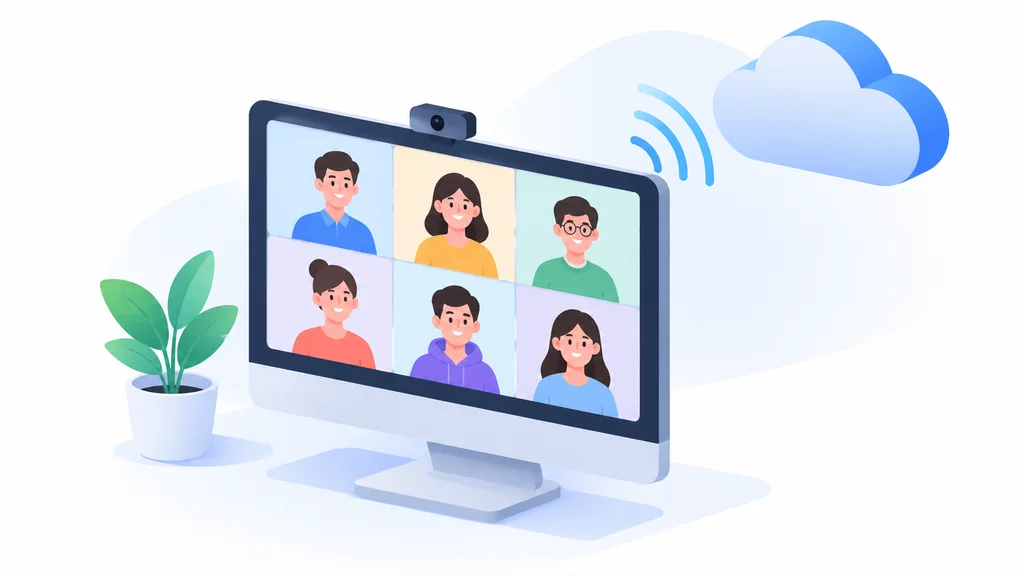
A cloud-based video conferencing service is software that runs your meetings on someone else’s servers, reached through a browser or an app. You don’t buy a box or hire someone to keep firmware patched. The vendor owns the infrastructure, the same model behind most cloud solutions in cloud computing today; you rent access, usually per user, per month.
That sounds simple, but the consequences are large. The meeting “room” lives in a data center far from the office, so attendees can join from a laptop in a hotel, a phone in a parking lot, or a desktop in the next building. The heavy lifting (mixing audio, routing video, recording sessions) happens on the provider’s machines.
Key difference from traditional VoIP / on-premise solutions
Traditional systems split into two camps. VoIP video calling ran over phone-style infrastructure that often struggled with video, and on-premise systems meant you bought and installed servers and were on the hook for most upgrades and outages. Cloud video conferencing moves all of that to a subscription.
| Factor | Cloud-based | On-premise |
|---|---|---|
| Setup time | Hours to days, mostly account and app setup | Weeks to months, including hardware and network work |
| Upfront cost | Low; monthly per-user fees | High; servers, licenses, installation |
| Maintenance burden | Vendor handles updates and patching | Your team owns upgrades, fixes and capacity |
| Scalability | Add or remove seats as headcount changes | Buy capacity ahead of demand, or scramble later |
The table is the short version. The real difference shows up in month six, when the on-premise team is scheduling a maintenance window and the cloud team is just having its meeting.
How Cloud Video Conferencing Fits Into Cloud Collaboration Tools

Video is one room in a much bigger house. Cloud based productivity and collaboration tools cover shared documents, chat, file storage, calendars and project boards. Video conferencing is the piece that turns a text thread into a conversation once typing stops being efficient.
The useful mental model is simple. Chat handles quick coordination, documents hold durable work product, and video covers decisions that need a face and a back-and-forth. A team that only chats tends to stall on anything ambiguous. The tools work best when they hand off to each other cleanly.
Where it sits in the broader productivity/collaboration stack
A web-based video conferencing tool typically plugs into three layers. The identity layer is your work login, often Microsoft 365 or Google Workspace, and it controls who can start or join a meeting. The scheduling layer uses calendar integrations to create links automatically. The persistence layer sends recordings and transcripts into cloud storage, where the rest of your collaboration tools can reach them.
A unified communications platform bundles calling, messaging and meetings under one login, cutting the number of apps an employee juggles. If a client calls and the team doesn’t know which app to open, the stack is too fragmented. The same sprawl problem shows up in broader enterprise cloud computing solutions.
Core Features to Expect
Most paid services now cover the basics well, so the differentiators sit in the details. Look past the feature checklist and ask how each item behaves on a bad connection, with a nervous first-time user.
HD video quality and screen sharing
HD video conferencing at 720p is table stakes now. Screen sharing and collaboration matter more for actual work. Can a colleague annotate your slide, take over the mouse, or limit sharing to a single window? Window-level sharing avoids the classic embarrassment of a notification popping up mid-presentation.
Recording, transcription and breakout rooms
Recording turns a meeting into a reusable asset. Transcription (automatic text of who said what) makes that recording searchable, useful when someone misses a call and just needs the decision. Breakout rooms split a large call into smaller groups and pull everyone back together afterward, better for training than one 30-person call.
Integrations with business apps
Integrations with Office 365, Slack, CRMs and project boards are where cloud collaboration tools earn their keep. A meeting link inside a calendar invite, or a recording that files itself into the right project folder, saves daily friction. That’s the same convenience behind digital transaction management tools that file a signed contract straight into cloud storage. Test one integration end to end before committing to it.
Security and Compliance Considerations

Cloud video conferencing security rests on encryption in transit. Call signaling is protected with TLS, commonly TLS 1.3. The media stream itself uses SRTP, often in its DTLS-SRTP form, commonly with AES-256 run in GCM mode as the cipher. In plain terms, the connection is scrambled, so an eavesdropper on the network sees only noise.
What each encryption term actually covers
- TLS
- Protects the signaling, the setup handshake that negotiates and starts the call.
- SRTP (commonly DTLS-SRTP)
- Protects the media stream itself, the audio and video packets flowing during the call.
- AES-256 (GCM mode)
- The cipher that does the actual scrambling inside SRTP.
Encryption is the floor, not the ceiling. Compliance is separate, and assumptions fail here. SOC 2, GDPR and HIPAA are distinct frameworks that don’t substitute for one another. A SOC 2 report describes a vendor’s controls; it doesn’t make the platform HIPAA-compliant. HIPAA specifically requires the vendor to sign a Business Associate Agreement (BAA) before the platform can legally handle protected health information. If you work in healthcare, ask for the BAA in writing before the first patient-related call.
Data residency is the third piece. GDPR governs how personal data of EU residents is handled, and some organizations need to know which country stores their recordings. Check where meeting data is processed if your contracts or clients require it. The same TLS/encryption question comes up when comparing FTP vs FTPS vs SFTP for file transfer.
Business Benefits and Common Use Cases
The headline benefit is reach. A small business can hold a polished meeting with a client three time zones away without a travel budget. The second benefit is speed, since decisions that used to wait for a weekly meeting can happen the same afternoon.
Remote and hybrid work
Hybrid is the harder case. Half the team sits in a room, half is on a laptop, and the remote half quietly gets sidelined. Remote meeting tools only help if the in-room group remembers to look at the camera. The technology is rarely the bottleneck. The meeting etiquette is. Pairing video with a few productivity hacks for staying focused between calls helps more than another feature toggle.
Cost savings vs. on-premise systems
Picture an illustrative example. Say a 25-person team is weighing an on-premise system against a cloud subscription. On-premise brings servers, installation, annual maintenance and a hardware refresh every few years, plus capacity bought ahead of need. Cloud is a per-user monthly fee that scales with headcount. A similar trade-off plays out in managed hosting vs. running your own server admin. A stable 25-person team may land in a similar range either way over several years. A team swinging between 12 and 28 people usually comes out ahead on the subscription, with no paying for idle capacity and no scramble when hiring picks up.
Scalability for growing teams
Scalability cuts both ways. Adding seats in a cloud service is usually just a billing change. The catch is discipline. Unused licenses quietly pile up, so review the seat count every quarter.
What to Look For When Evaluating a Service

Evaluate against your worst realistic meeting, the one with a shaky connection and five people dialing in from phones. A clean demo tells you little about a busy Tuesday morning.
Participant limits and concurrent users
Check two numbers: the cap on attendees per meeting, and how many meetings can run at once. A plan that fits your all-hands may still throttle you when three client calls overlap.
Mobile and cross-platform support
Your clients will join from whatever device they have. Confirm the service works in-browser without a download, and that the mobile app handles a call on a mediocre cellular signal.
Call quality and uptime SLA
Bandwidth is the usual culprit. A one-to-one HD call, roughly 720p, needs modest bandwidth. Plan on about 1.5 to 3 Mbps upload and download per participant, in line with what Microsoft Teams and Zoom each recommend. Group calls climb fast. Three to six participants need noticeably more. Expect roughly 8 to 10 Mbps download at the host’s network. Upload often runs higher, commonly 15 to 20 Mbps. Video is upload-intensive compared with most office internet use.
Uptime is the other half. A 99.9% SLA, known as three nines, is the common baseline for commercial cloud services, allowing about 43.8 minutes of downtime a month. Enterprise buyers often push for an even tighter 99.99% instead. Real-time video also cares about latency, commonly targeted around 150ms or less, because a call is far more sensitive to delay than email or file sync.
Ease of use and IT admin burden
The best measure is how long a new hire takes to join a meeting unassisted. An onboarding process that needs a support ticket will keep needing one. That’s the same ease-of-use test that shapes which time and billing software a small accounting team actually keeps using after the trial ends.
Conclusion: Is Cloud Video Conferencing Right for Your Business?
For most small businesses, yes, with conditions. Cloud video conferencing wins on setup speed, upfront cost and flexibility, and its security stack (TLS, SRTP, AES encryption) holds up when the vendor is chosen carefully. Confirm the compliance paperwork you need (a BAA for healthcare, GDPR handling for EU data), check your upload bandwidth, and read the uptime SLA instead of assuming it. On-premise still suits organizations with strict data-control needs and the staff to run it. Everyone else should start with a trial and test it against a real, messy meeting.
Frequently Asked Questions
Do I need special hardware for cloud video conferencing? Usually not. A laptop or phone with a camera and microphone works, and a browser is often enough to join. A decent headset and good lighting help but stay optional. Dedicated room systems help when several people share one screen.
Is cloud video conferencing secure enough for confidential meetings? Reputable services encrypt calls in transit using TLS for signaling and SRTP with AES encryption for the media stream, making it far harder for network eavesdroppers to intercept the call. Security also depends on account settings. Meeting passwords, waiting rooms and access controls matter. For regulated data, confirm the vendor’s compliance paperwork, such as a signed BAA for healthcare.
How much internet bandwidth does a video call need? A one-to-one HD call, roughly 720p, is light on bandwidth. Plan on about 1.5 to 3 Mbps upload and download per participant. Group calls need considerably more. Three to six people can require roughly 8 to 10 Mbps download at the host’s network. Upload climbs well past that, commonly 15 to 20 Mbps. Upload speed is the figure people overlook.
What does a three-nines uptime SLA actually mean? The provider commits to the service being available 99.9% of the time, allowing roughly 43.8 minutes of downtime a month. That’s the common SaaS baseline. Enterprise buyers often negotiate 99.99%, shrinking the allowed downtime considerably.
Can cloud video conferencing replace our phone system? Often, yes, especially through a unified communications platform bundling calling, messaging and meetings. The trade-off is that voice calls now depend on internet connectivity. Keep a fallback plan, such as mobile phones, for the day the office connection drops.
Thank you for reading!